GoHighLevel setup
Connect GoHighLevel and Ready becomes the Telephony Provider inside it. Your contacts, tags, DND settings, workflows and Conversations stay in GoHighLevel. Only the sending moves to Ready: the numbers, carrier registration, balance and delivery reports.
#Before you start
- A Ready account. No account? Sign up.
- Balance. Every text is paid from your Ready balance. If it runs out, texts fail in GoHighLevel. Auto top-up turns on when you save your first card; change it in Settings → Billing of the account that pays. Prices are in Billing.
- A GoHighLevel agency admin login. You need it to install Ready, and to switch the provider by hand if you ever have to.
Registration and carrier approval are the parts that make you wait, so start them as soon as a location is linked. Moving from LeadConnector? Here’s what happens to your texts, contacts and numbers.
#1. Install Ready in GoHighLevel
You do this once for the whole agency.
- In Ready, open Settings → Integrations and click Connect next to GoHighLevel. Or install Ready from the Marketplace.
- In the first GoHighLevel screen, pick your agency, tick both boxes, then click Proceed:
- Install under all locations
- Enable automatic installation to future locations
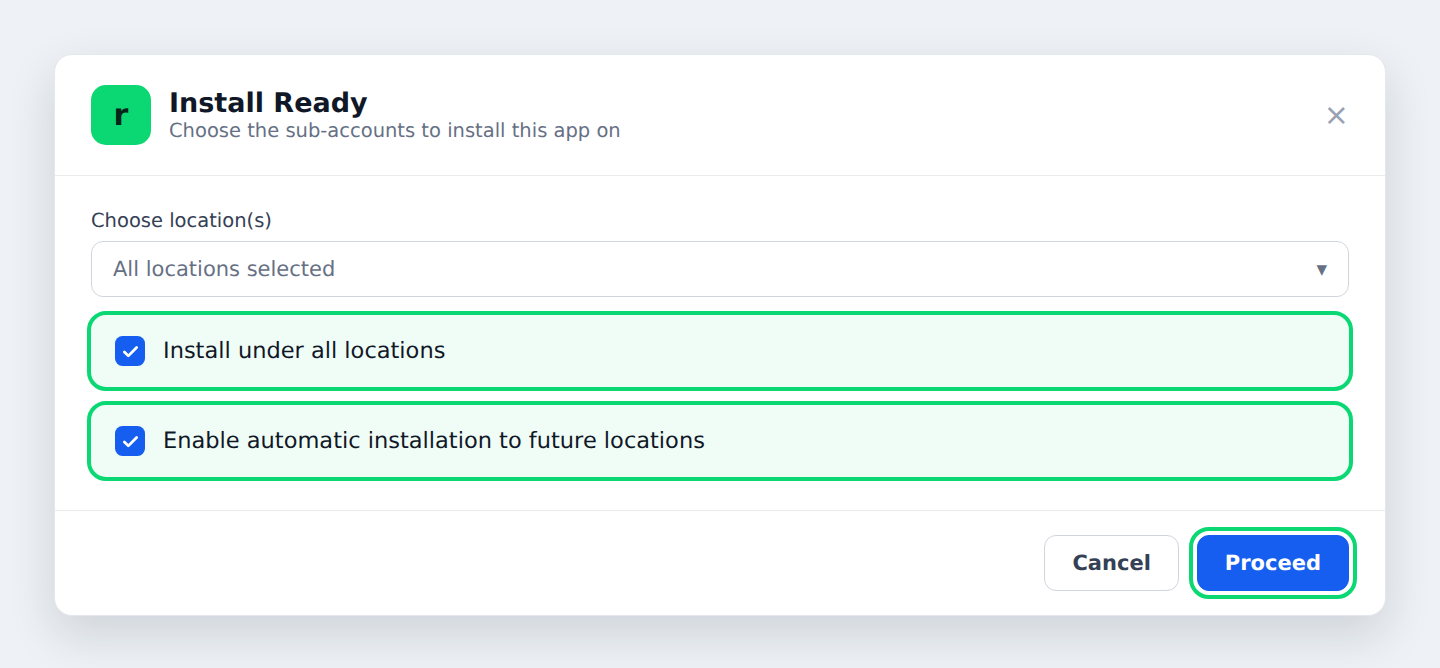
- On the next GoHighLevel screen, tick every Ready box it lists, then continue.
#2. Link your locations
A location is in GoHighLevel, and a sub-account is in Ready. Each location texts from one sub-account’s numbers. When the install finishes, GoHighLevel sends you to Ready’s Pick a Ready account page. Sign in if asked.
- A location whose name matches none of your sub-accounts starts on Create “name” in Ready. For the others, pick a Ready sub-account or choose Create “name” in Ready.
- Choose Skip for now on a row to leave it for later, then click Confirm.
Installed from the Marketplace before you had a Ready account? Sign up when asked, and finish linking within 2 hours of installing.
#Link a location later
Skipped a location, or missed the page? Link it on Sub-accounts. Once GoHighLevel is connected, the list has a GoHighLevel column.
- One location: click Link in the GoHighLevel column of the sub-account it belongs to. Pick the location (search by its name or its GoHighLevel ID) and click Link. The GoHighLevel card on a sub-account’s page has the same button.
- Several locations: click Link N at the top of the list, where N is the number of locations waiting. In the Link to GoHighLevel window, pick a location for each sub-account. Under Locations with no sub-account, tick Add as a sub-account to make a new sub-account for a location, or Add all as sub-accounts. Then click Link. A location links to one sub-account only.
Both windows have Have Ready change the sub-account’s telephony provider to Ready, ticked unless your agency already turned Ready Bot off. (Sub-account logins don’t see the box.) Leave it ticked and Ready Bot switches each location to Ready once it can send. It’s one setting for your whole agency, not only for this location: untick it and Ready Bot is off for every location. It’s the same switch as Let Ready Bot into your GoHighLevel agency in Sub-accounts → Defaults.
A new sub-account starts with no number and pays from your main account’s balance, unless you resell Ready under your own brand. Locations you add in GoHighLevel later get their own sub-account and link on their own when you turn on Set up new GoHighLevel locations automatically in Sub-accounts → Defaults. The connect page asks this once, as Link new locations automatically, until you answer.
Contacts import on their own as soon as a location links, with their DND settings, about 40,000 at first. If a location has more, the import keeps going in the background until it’s done, and the GoHighLevel card on the sub-account’s page shows how many have come in so far. You don’t need to press anything. Continue import is still there if you’d rather start it right away. A location whose contacts never came in shows Contacts not imported yet and an Import contacts button.
#3. Get a number
A location that shows No phone number yet has no number that can send. On Sub-accounts, click the alerts button next to the sub-account’s name (it says, for example, 1 alert), then Buy number on the No number alert. New numbers are the fastest way, and they start sending once the registration is approved. To keep the numbers your contacts know, port them to Ready. Ports usually take 1 to 3 weeks, and the numbers keep working on LeadConnector while they run. You can mix both.
#4. Register the business
A location that shows No approved registration yet can’t send until carriers approve one. Click Register on the sub-account’s Not registered alert. The Add a registration window opens. Pick one:
- Share your sending capacity. The location sends on your own approved registration, within the daily limit you give it. See Sending capacity.
- Register a new business. Use the legal name and EIN on the business’s IRS records, or it gets rejected. The brand takes about 1 to 24 hours, the campaign 2 to 7 days. Until it’s approved, a sending limit applies.
Your registration in GoHighLevel’s Trust Center doesn’t move. Registration happens in Ready’s Registration tab.
#5. Ready becomes the Telephony Provider
You don’t change anything in GoHighLevel. Once a location has a Ready number and an approved registration, Ready Bot sets its Telephony Provider to Ready, about a minute later. Until then it keeps texting through LeadConnector, so nothing stops while you wait. To start it right away, click Switch to Ready on the sub-account’s Not on Ready alert.
Ready Bot is a user Ready adds to your GoHighLevel agency for a short while. It switches locations once they can send, unless you turn it off: untick Have Ready change the sub-account’s telephony provider to Ready when you link, or turn off Let Ready Bot into your GoHighLevel agency in Sub-accounts → Defaults. Both are the same switch, and it covers every location. Read what it does, what it never touches and how to turn it off before you leave it on.
Troubleshooting: still on LeadConnector a day later? Switch it yourself
Log in to GoHighLevel as an agency admin and, in that sub-account:
- Open Settings → Phone System.
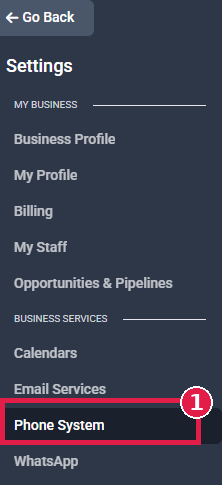
- Click the Additional Settings tab. (No tab? You’re not logged in as an agency admin.)

- Open the Telephony Provider tab.
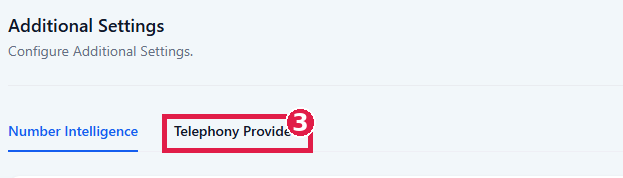
- Select Ready so it shows as Default, then click Save.
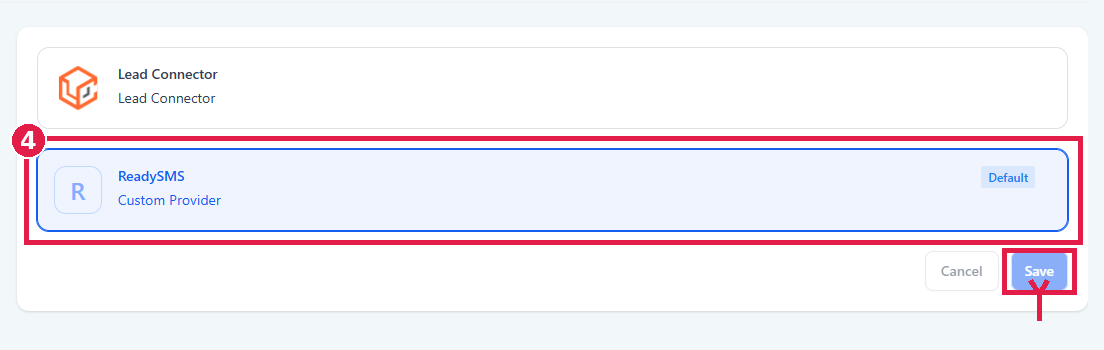
Older GoHighLevel accounts call it Settings → Phone Numbers → Advanced Settings → SMS Provider. It’s the same switch.
40 seconds. Can’t play it here? Open the video.
#6. Send a test text
- In GoHighLevel, open a contact with your own mobile number and send a text from Conversations.
- It arrives from your Ready number. Reply to it.
- Your reply shows up in the same GoHighLevel conversation.
You’re live. Every workflow, trigger and bulk text in this sub-account now sends through Ready. Your other locations switch the same way once they can send. Each one moves through the statuses until it shows Live. Next: Using GoHighLevel covers what changes, sender tags, fixes and disconnecting.
#Moving a whole agency
Every location needs a number it can send from: its sub-account’s own, or your agency’s numbers if the sub-account uses those. For registration, a location either shares your approved registration or has its own, because carriers register every business separately. Start with a few locations. Once their tests come through, link the rest with Link N at the top of Sub-accounts. To switch several at once, tick their rows on Sub-accounts and click Send bot to N, where N is the number of their locations that can switch now. A location that hasn’t switched keeps texting through LeadConnector, so nothing breaks while you go.
To manage the sub-accounts afterwards, see Team.