GoHighLevel setup
Make Ready the SMS provider inside GoHighLevel. Workflows, triggers, bulk actions and Conversations keep working as they do today. Only the sending moves to Ready. Setup takes about five minutes.
Watch the whole switch
The whole setup in a video just over a minute long. First connect in Ready: log in, choose an account, confirm, turn on. Then make Ready the texting provider in GoHighLevel.
Can't play it here? Open the video. The names in the video are examples.
Before you start
- A Ready account. No account yet? Sign up first.
- The right workspace open. Numbers, Logs, Inbox, Registration and Compliance are in a workspace, not the Agency view. If you're in the Agency view, click your business name in the top bar and pick the account first.
- An agency admin login for GoHighLevel. Step 2 happens in Phone System → Additional Settings, and only agency admins can see that tab.
- An active Ready number. Texts go out from your Ready numbers, not your LeadConnector numbers. Get one in Reports → Numbers.
- One Ready account per sub-account. Each GoHighLevel sub-account texts from its own Ready account's numbers. You can create a Ready sub-account for each one while you connect.
- Credit in your Ready balance. Every text draws from it. Turn on auto rebill (step 4).
1. Connect GoHighLevel to Ready
Start from inside Ready so the connection goes straight to your account.
- In Ready, open Settings → Integrations.
- Under Connected services, find GoHighLevel and click Connect.
- In GoHighLevel, choose the sub-account and approve access.
- Back in Ready, pick the Ready account this sub-account texts from, then click Confirm connections.
Installing: tick both boxes
When GoHighLevel shows the install window:
- Tick both boxes:
- Install under all locations
- Enable automatic installation to future locations
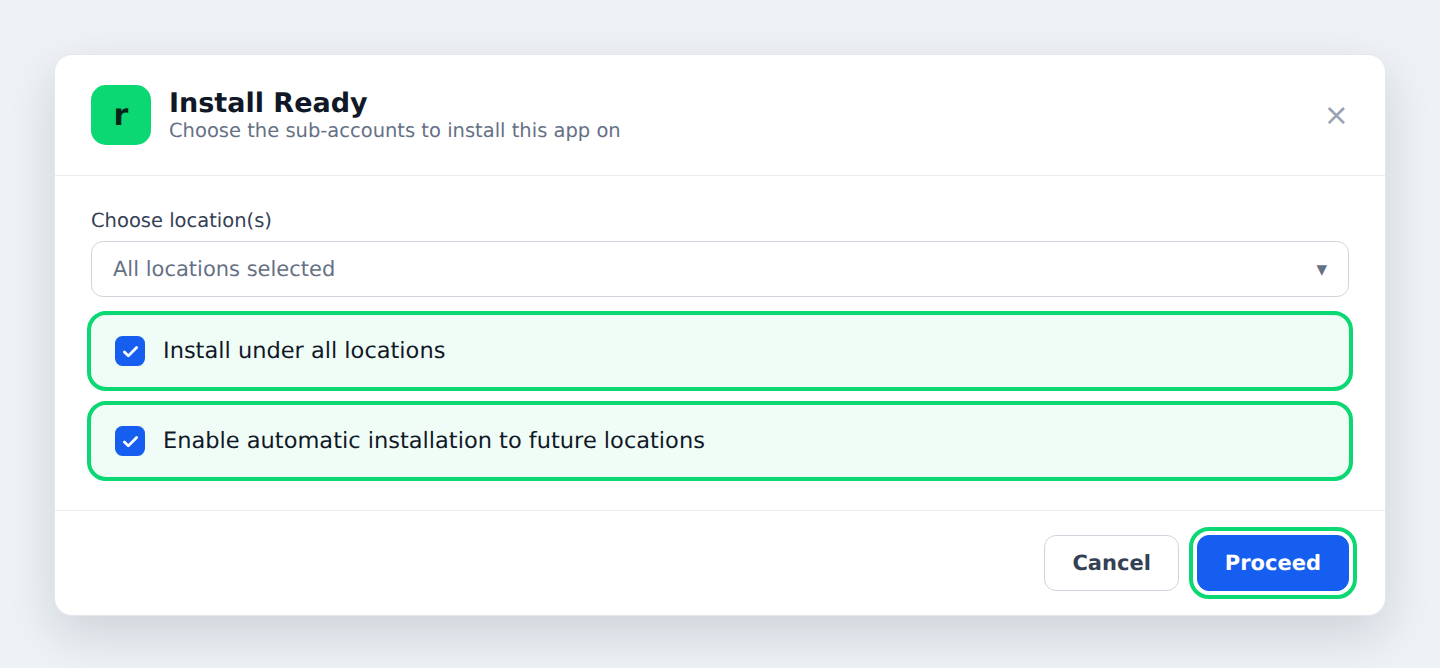
- Click Proceed.
Ready asks which Ready account each sub-account texts from, even if you're connecting one.
- Pick a Ready account for each sub-account.
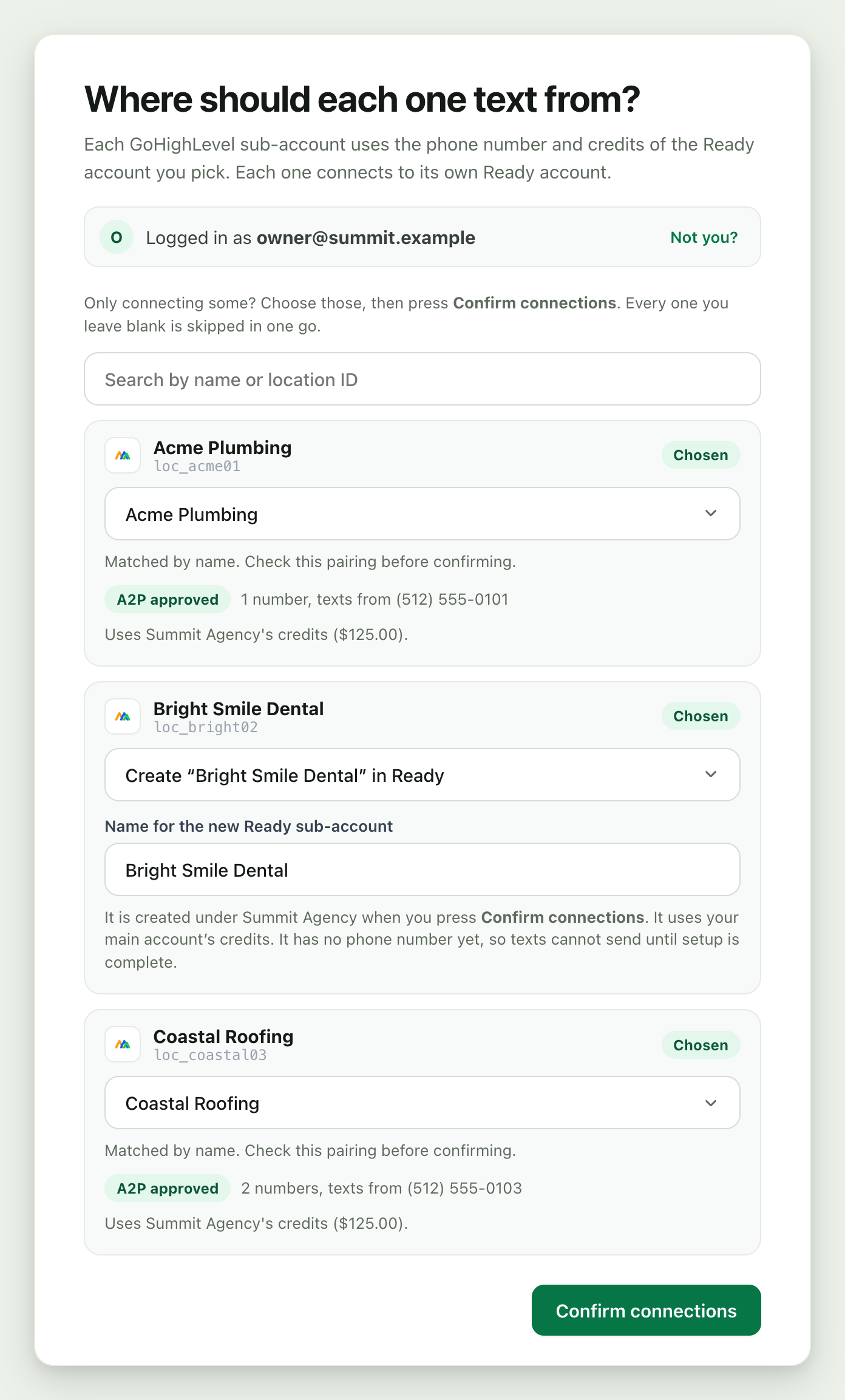
- Click Confirm connections. If you left a sub-account blank, Ready asks before it skips it.
Details
Each Ready account connects to one sub-account, and the sub-account texts from that account's numbers. Create "your sub-account's name" in Ready (shown when you're logged in to your main account) gives a sub-account its own Ready account. It uses your main account's credits and starts with no number, so get it one in Reports → Numbers before you send. Skip for now leaves a sub-account for later.
Ready then shows Last step: turn on Ready in GoHighLevel: each sub-account with an Open Phone System settings link, the four steps of step 2 below and a short video of the switch. Keep that tab open and follow along there or here.
2. Make Ready your SMS provider in GoHighLevel
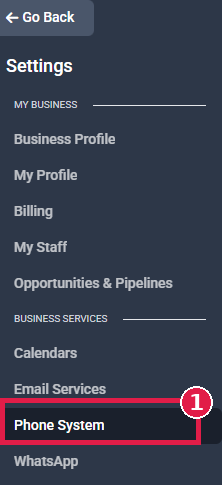
This step is required. Without it, texts keep going out through LeadConnector. GoHighLevel doesn't let apps change this setting, so it's one manual switch per sub-account (the one the video shows). As an agency admin, open the sub-account in GoHighLevel, then:
- Open Settings → Phone System.
- Click the Additional Settings tab. (No tab? You're not logged in as an agency admin.)

- Open the Telephony Provider tab.
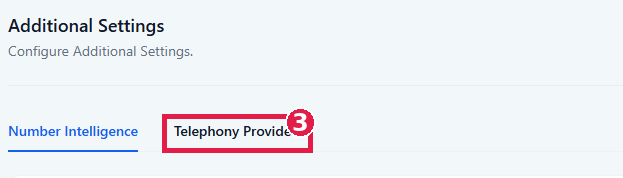
- Select Ready (older installs may show ReadySMS) so it shows as Default, then click Save.
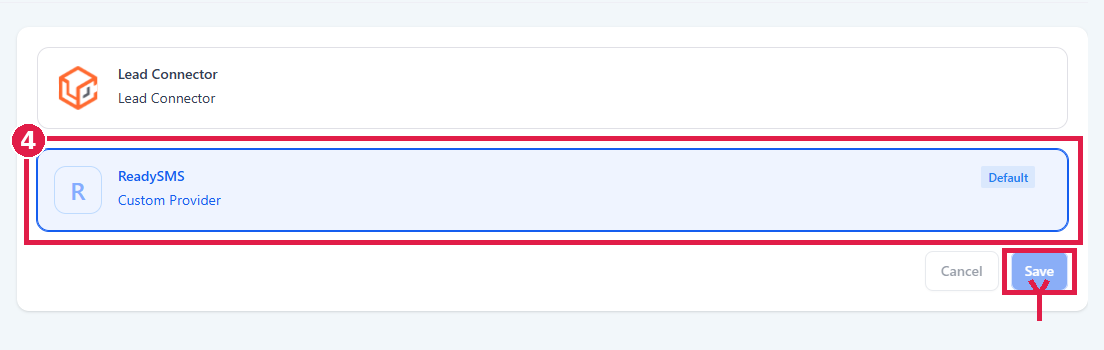
Back in Ready, click I've switched it. Ready sends a free test text through GoHighLevel to a placeholder number we own. The sub-account turns Live once it comes through Ready.
Some GoHighLevel accounts still use older labels: Settings → Phone Numbers → Advanced Settings → SMS Provider. It's the same switch.
Watch just this step
This 40 second video shows where the switch is.
Can't play it here? Open the video.
3. Send a test text
- In GoHighLevel, open a contact with your own mobile number and send an SMS from Conversations.
- The text arrives from your Ready number. Reply to it.
- Your reply shows up in the same GoHighLevel conversation. In Ready, the text appears in Reports → Logs.
4. Credits and auto rebill
Every text is paid from the credits of the account that pays for the connected Ready account. A Workspace uses your main account's credits. If the credits run out, texts stop and show as failed in GoHighLevel. To keep sending, switch Auto-rebill on under Credits & auto-rebill in Settings → Billing, in the account that pays.
Top-up rules and prices are in Billing and pricing.
Watch: send texts from GoHighLevel
This two minute video follows real texts from GoHighLevel, through Ready, to a phone: Conversations, a workflow, delivery in Ready, and the texts arriving.
Can't play it here? Open the video.
Any workflow with an SMS action sends through Ready, and so do triggers and bulk actions. Your Inbox or Reports → Logs shows each text and whether it was delivered. Want to make calls here too? Follow the GoHighLevel dialer guide.
What happens after setup
- Replies land in GoHighLevel Conversations, as before. Ready adds the person to GoHighLevel if they aren't a contact yet.
- Opt-outs: when a contact texts STOP, Ready turns on DND for them in GoHighLevel (all channels) and adds the tag
sms_stop_keyword. If they later text START, Ready lets texts through again, but GoHighLevel keeps the DND until you remove it. - Blocked texts (opted-out contacts, low balance, no active number) show as failed in GoHighLevel with the reason.
- Texting hours: Ready sends between 8am and 9pm in the contact's local time (8pm in a few states). A text outside those hours is held and goes out by itself at the next allowed time. GoHighLevel shows it as failed with a "Held until" note, so don't send it again.
- Delivery: GoHighLevel shows your texts as sent, and texts the carrier fails to deliver as failed. For delivered status, check Reports → Logs in Ready.
- Images: a photo you attach in GoHighLevel is sent with the text as a picture message (MMS). If you attach more than one, only the first is sent.
- Opt-out line: Ready adds your opt-out line and business name to texts, following Settings → Compliance.
- Carrier registration happens in Ready's Registration tab, not GoHighLevel's Trust Center. Until it's approved, sending is capped at 500 texts a month. See Compliance.
Sender-Number Formulas (GoHighLevel)optional
Put a short formula anywhere in a GoHighLevel SMS to choose which of your numbers sends it. Ready applies it and strips it out before delivery, so your contact never sees it.
The formula never counts toward your character or segment count. A 158-character message with a #from:local# formula still sends as one segment. The formula text is not billed.
#from:auto#or#from:local#: Local presence. Sends from the number whose area code matches your contact (falls back to your nearest area code, then a consistent number per contact). Best reply rates.#from:rotate#: Sticky rotation. Spreads sends across all your numbers, but the same contact always gets the same sender.#from:even#: Even split. Distributes evenly across your numbers (least-used first), with no stickiness.#from:+15551234567#: Fixed number. Always sends from that one number. Write digits only: with spaces or dashes the tag isn't recognized and the contact sees it.
Example. You type in GoHighLevel:
#from:local#Your contact receives, from a number matching Sarah's area code, still one segment:
Give each rep their own number. In Settings → Integrations under GoHighLevel → Give each rep their own number, pick a number for each rep. It applies when a rep texts from Conversations. Workflow and bulk texts use the number of the rep the contact is assigned to in GoHighLevel, if you've picked one for that rep. If not, they use your normal numbers. A #from tag always wins.
Troubleshooting
I can't see Additional Settings or Telephony Provider
Log in to GoHighLevel as an agency admin (see step 2) and open the sub-account's Settings again. On older accounts it's under Phone Numbers → Advanced Settings → SMS Provider.
I don't see Ready in the Telephony Provider list
Ready isn't installed on that sub-account. Install it again with both boxes ticked (see the install window), then check the list again.
Texts are still going out through LeadConnector
Step 2 isn't saved for this sub-account. Select Ready again and click Save, even if it looks selected. Wait a few minutes, then send another test. In Ready, a row that still says Not switched yet means the same thing: fix it, then click I've switched it again.
GoHighLevel says "Sent" but nothing arrives
The sub-account probably isn't connected to your Ready account yet. In Ready, open Settings → Integrations. If GoHighLevel shows Not connected, click Connect and choose that sub-account.
GoHighLevel shows the text as failed
The failed message shows the reason. The usual causes are:
- a low balance (add credits in Settings → Billing)
- no active Ready number (get one in Reports → Numbers)
- the contact opted out
- a quiet-hours block
- hitting the 500 texts a month cap before your registration is approved
Disconnecting Ready
- In Ready, open Settings → Integrations. Under GoHighLevel's Connected sub-accounts, click Unlink next to each sub-account and confirm. Ready removes itself from that sub-account in GoHighLevel, and its texts go back to its GoHighLevel provider. Contacts and messages already in Ready stay.
- Send a test text from GoHighLevel. If it doesn't send, or Ready said it couldn't confirm the unlink, check the sub-account's Telephony Provider (step 2) and uninstall Ready from it in GoHighLevel.